

Using the CCS AI Inference Gateway
This page stays here permanently -- bookmark it. It covers what the AI Inference Gateway is, the rules for using it, how to get a key, and how to make your first request. The full model list and the explanation of every error message live on the gateway's own help page, linked below.
What the AI Inference Gateway is
The CCS AI Inference Gateway is an API for running AI models from your own code:
an OpenAI-compatible endpoint at https://llm.ccs.uky.edu/v1 for University of Kentucky
researchers and HPC users. It is not a chat website. You call it from scripts,
notebooks, IDE plugins and any tool that speaks the OpenAI API, and the key you create here is
what identifies you and decides which budget is charged.
Models hosted on CCS hardware on campus, whose names begin ccs/, keep
everything inside the university. Funded projects can additionally reach models hosted
outside the university through a project budget. Any tool or library that speaks the OpenAI API works unchanged: point it at
the endpoint above and give it your key.
You need a CCS account (logging in here once creates it). You do not need an HPC allocation or an SSH key to use the gateway.
The rules: what you may and may not send
- Research and academic use only. No commercial use, and not a general-purpose assistant for unrelated work.
- Never send sensitive or regulated data: no protected health information (PHI or HIPAA data), no personally identifiable information, no FERPA student records, no export-controlled data, and no Controlled Unclassified Information (CUI).
- Where your data goes depends on the model, not on the key. Models
hosted on CCS hardware, whose names begin
ccs/, run entirely on campus; your prompts and responses never leave the university. Any other model is hosted outside the university and your requests are processed by that provider. Before your first key that can reach such a model you confirm, once, that you understand where that data goes. Which models a key can reach is listed beside the key on the AI Inference Keys page, and always by the/v1/modelsrequest below. - Your key is yours. Do not share it, paste it into shared notebooks, or commit it to a repository. If it leaks, revoke it on the AI Inference Keys page; requests with it are refused within about a minute.
Get access in four steps
- Log in here once. Use the Log In
link with your university, ACCESS or other institutional identity. That creates
your account; you can skip SSH keys entirely. The same login also manages SSH keys,
which is why the dashboard shows two cards.
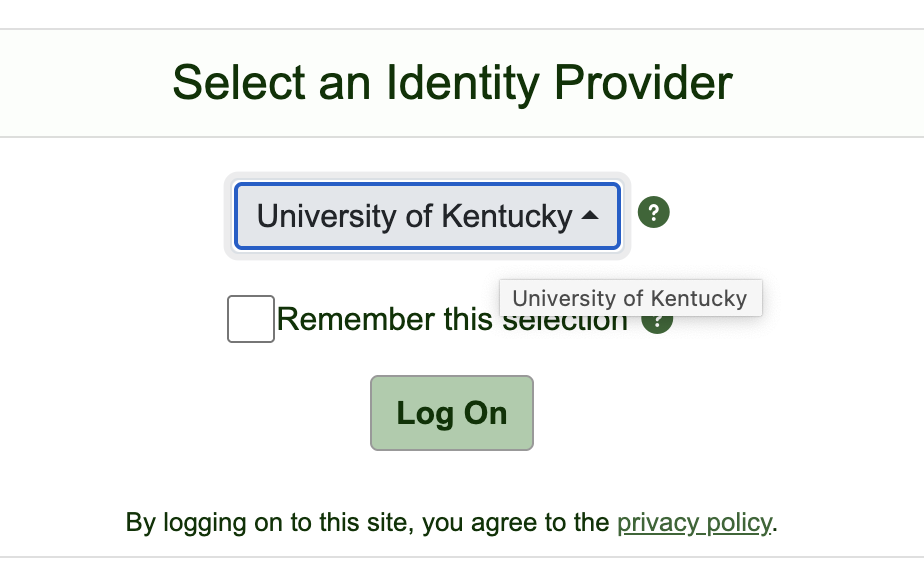
CILogon asks which identity provider to use; University of Kentucky people pick University of Kentucky. 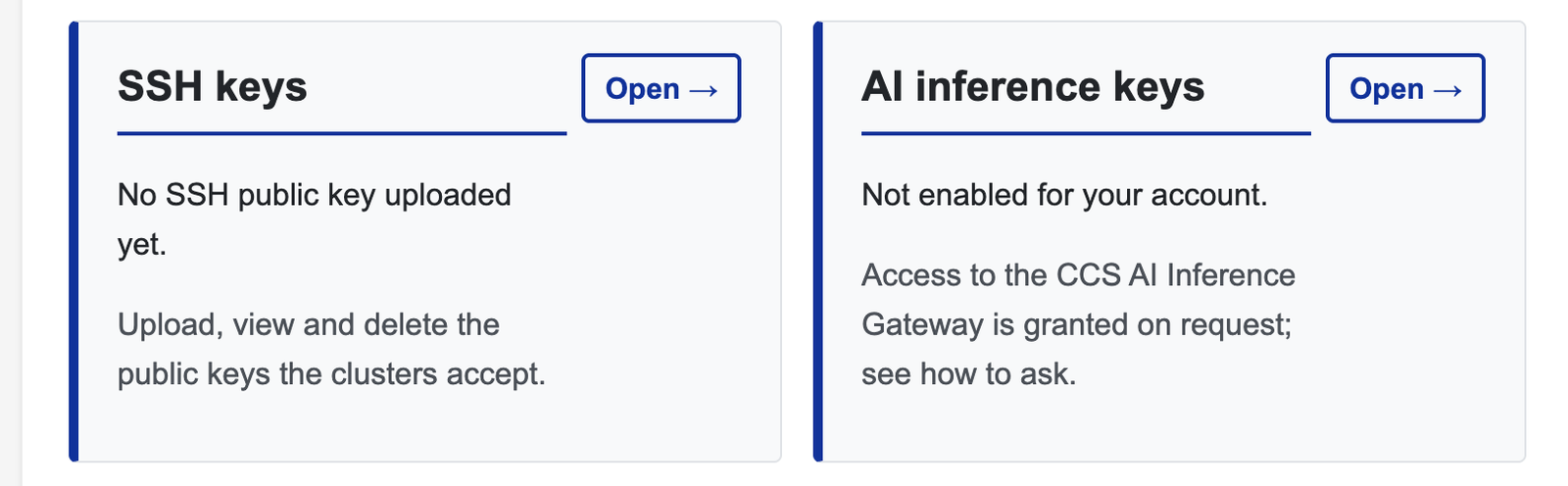
The dashboard after your first login: the AI inference keys card says access is not enabled yet. - Ask CCS to enable AI inference access at the
HPC User Support Request portal (opens in a new tab).
Say whether you want the on-campus models only, or you are part of a funded project
whose PI has set up cloud access; project membership is managed by CCS, never
self-service. Until CCS approves you, the AI Inference Keys page looks like this:
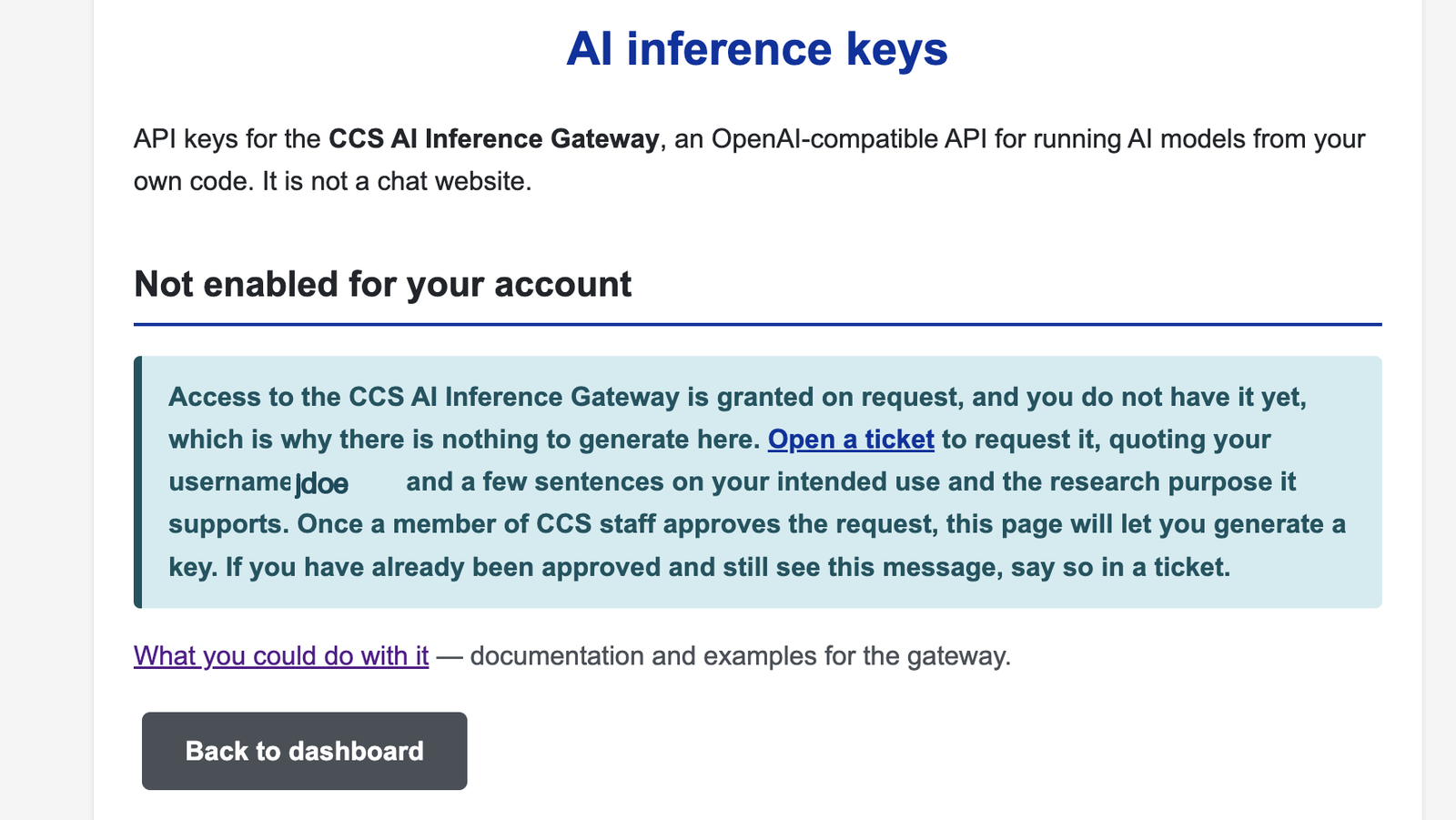
The AI Inference Keys page before approval: nothing to generate yet, and how to ask. - Generate your key on the AI Inference Keys page once CCS has enabled you. The full key is shown exactly once -- copy it somewhere safe before you leave the page.
- Use it with the endpoint above, as shown in Make your first request.
Your key: one personal, one per project
- Personal key. Everyone who has been approved gets one. The models it
can reach are listed beside it on the AI Inference Keys page; today those are the
on-campus
ccs/models, with no spending limit. - Project keys. Each project you are a member of gives you one key of its own. Requests with it draw from that project's budget and can reach the cloud models the project has enabled. The AI Inference Keys page shows the pool, how much is used, and your own share.
- The key you send decides which budget is charged. Keep personal and project work on the matching key.
- Regenerate and revoke from the AI Inference Keys page at any time. Regenerating replaces that one key only; the others keep working. Apps using the old key stop within about a minute.
- Expiry. Keys have an expiry date, shown on the AI Inference Keys page, with an Expiring Soon badge during the last 30 days. An expired key could stop your applications, so regenerate before then.
- Lost it? Nobody can show it again. Regenerate.
Make your first request
Put your key in the Authorization header as a bearer token. Replace
YOUR_KEY below with the key you copied.
List the models your key can call
curl -s https://llm.ccs.uky.edu/v1/models \
  -H "Authorization: Bearer YOUR_KEY"
A chat completion with curl
curl -s https://llm.ccs.uky.edu/v1/chat/completions \
  -H "Authorization: Bearer YOUR_KEY" \
  -H "Content-Type: application/json" \
  -d '{"model": "ccs/llama3.1:8b",
       "max_tokens": 100,
       "messages": [{"role": "user", "content": "Say hello in one sentence."}]}'
The same in Python
pip install openai

from openai import OpenAI
client = OpenAI(base_url="https://llm.ccs.uky.edu/v1", api_key="YOUR_KEY")
r = client.chat.completions.create(
    model="ccs/llama3.1:8b",
    max_tokens=100,
    messages=[{"role": "user", "content": "Say hello in one sentence."}],
)
print(r.choices[0].message.content)
Any OpenAI-compatible tool
Set the tool's base URL to https://llm.ccs.uky.edu/v1 and its API key to
your key. Most tools read OPENAI_BASE_URL and OPENAI_API_KEY
from the environment, so this usually works:
export OPENAI_BASE_URL="https://llm.ccs.uky.edu/v1"
export OPENAI_API_KEY="YOUR_KEY"
Models: local and cloud
Model names tell you where they run. Names beginning ccs/ run on campus
and are available to every key. Today, models hosted outside the university appear only on
project keys whose project has enabled them; the list beside each key is authoritative. The exact list changes as models are added, so the authoritative
catalogue is the gateway's:
model catalogue (opens in a new tab), and the
gateway help page (opens in a new tab).
Your own list is always one call away: the /v1/models request above.
When a request fails
The gateway's help page explains each message and what to do. These open in a new tab:
- 401 -- key missing or invalid
- 403 -- model not allowed on this key
- 429 -- project budget spent
- 429 -- busy, retry later
A key you revoked or regenerated keeps answering for up to a minute; that is expected, not a failure to revoke.
Need more than an API? Other ways to run models
The gateway is the managed, interactive option. For heavy batch work you can run models yourself on cluster GPUs, and there is a low-cost option on dedicated inference hardware. Those paths, and how to choose between them, are described on the CCS AI Inference: Getting Started page (opens in a new tab).
Open a support ticket
For access requests, project membership, budget questions or anything not answered above, open a ticket at the HPC User Support Request portal (opens in a new tab).