

Using Your SSH Key
This page stays here permanently -- bookmark it and come back whenever you need it. It covers what to do with a key you just generated or created yourself, how to connect to a cluster with it, and how to keep it safe.
Where your keys live on this site
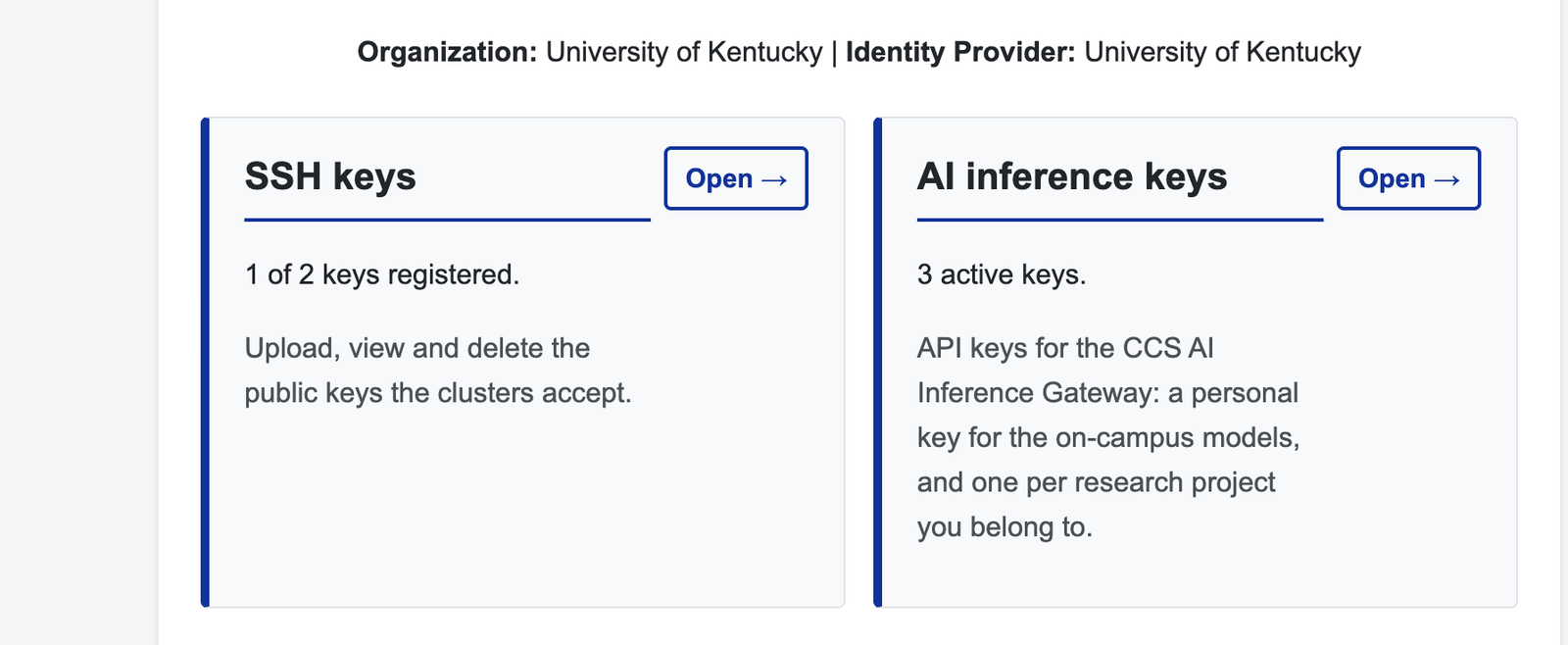
After you log in, the dashboard shows one card per thing this site manages. The same login covers SSH keys for the clusters and API keys for the CCS AI Inference Gateway; you can use either without the other. Open the SSH keys card to see, add or delete your keys.
The rules: expiry, key types, how many
These are the current policy values, read live from the server's configuration, so this table always matches what is actually enforced.
| How long a key lasts | 180 days from the day you upload it. The clock restarts each time you upload a replacement. |
|---|---|
| Reminders before expiry | Email at 30, 7 and 1 days before the
deadline, and once more if the key lapses. Sent from
no-reply@uky.edu -- add it to your safe senders so the warnings
do not land in junk. Replies to that address are not read. |
| Accepted key types | ssh-ed25519, ssh-rsa.
RSA must be 3072 bits or larger. RSA-1024,
RSA-2048, DSA and ECDSA are refused. Ed25519 is the recommendation: it is
shorter, faster, and its fixed 256-bit size is stronger than RSA-2048. |
| How many keys | Up to 2 at a time, each under its own
label (Laptop, Desktop/Workstation, Other).
Uploading against a label that already has a key replaces that key.
Two keys means you can keep working from a second machine while rotating
the first. |
| Reusing an old key | Refused. Your last 10 fingerprints are remembered, so a rotation has to be a genuinely new key. Never "rotate" by re-uploading the same file. |
| What expiry means | An expired key stops being synchronized to the clusters. If you have an allocation and account on a cluster, you could lose access until a new key is uploaded and an administrator processes it. Rotate before the date, not on it -- an administrator has to act before your new key works. |
| Keys are personal | One key, one person. Registering a key belonging to someone else, or sharing yours, violates acceptable use policy and results in permanent suspension of the account. |
Let Locksmith make a key for you, in the browser
On the Submit Key page choose Generate a new key pair for me, here in this browser. Pick Ed25519 unless something in your workflow cannot handle it, then select Generate.
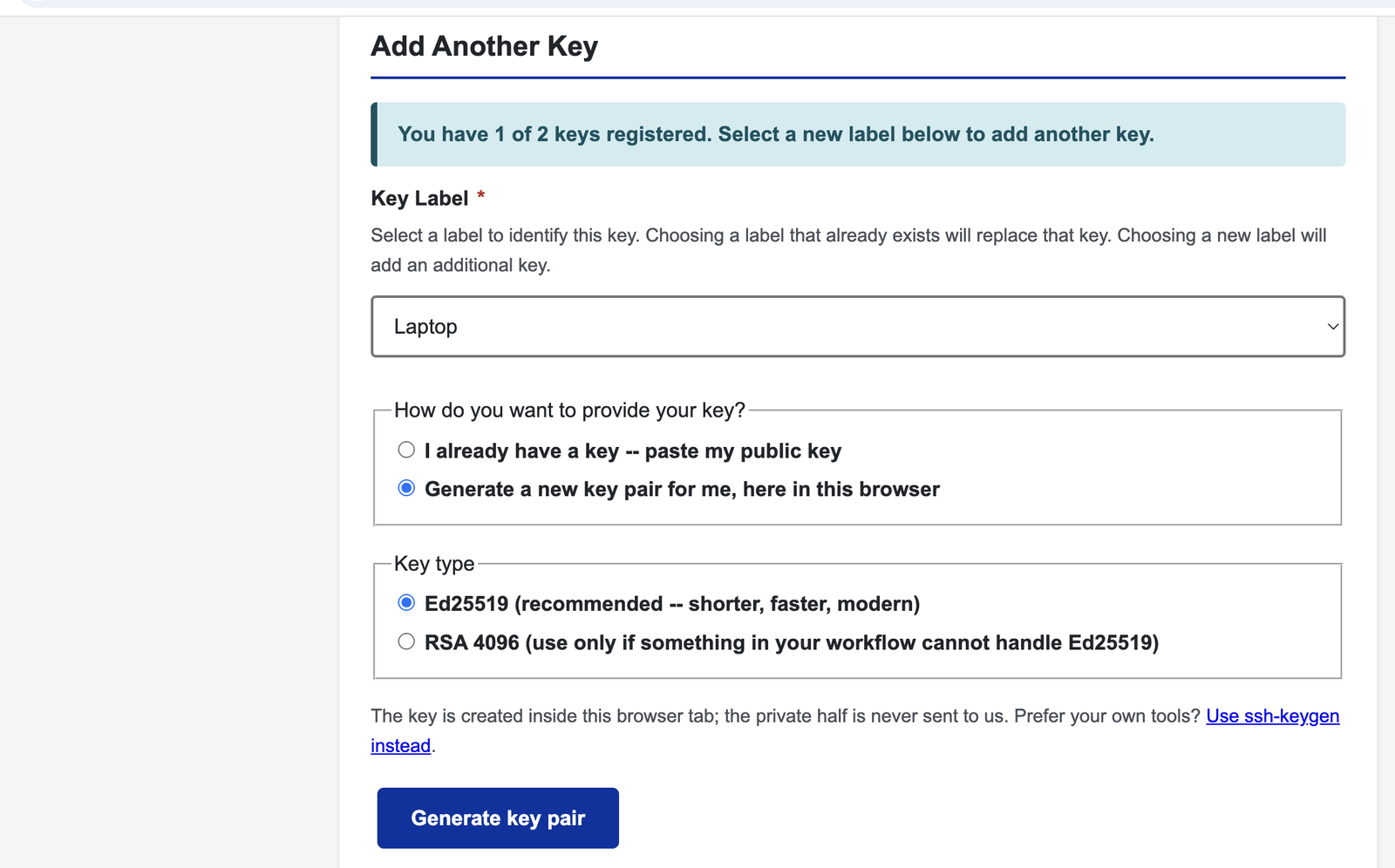
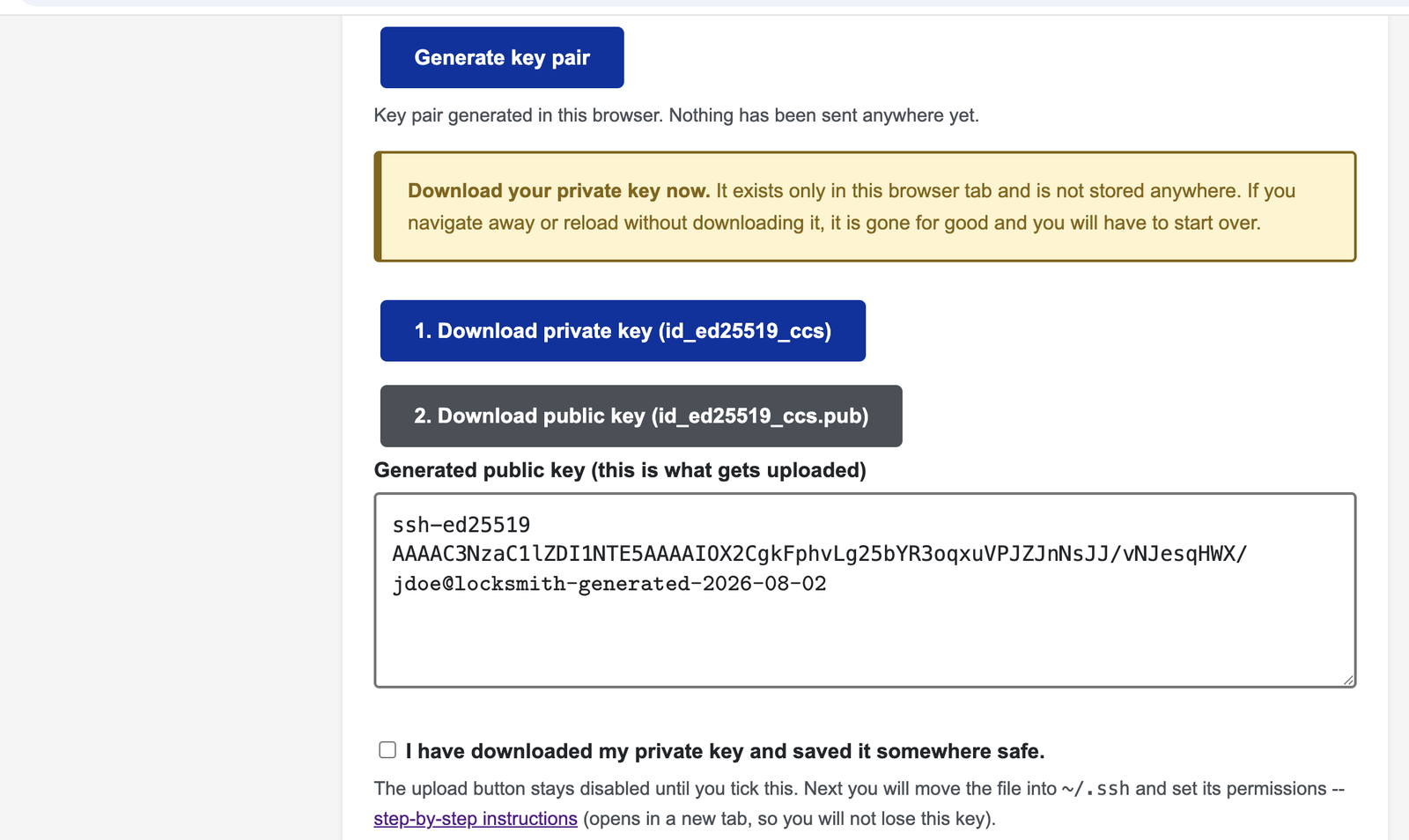
- The key is made inside your browser tab. The private half is never sent to Locksmith or stored anywhere; the page only uploads the public half when you submit.
- Download both files at once. The private key exists only in
that tab. If you reload or leave without downloading it, it is gone and you
start over. The suggested names are
id_ed25519_ccsandid_ed25519_ccs.pub. - It has no passphrase. The file alone is enough to log in, so either add one right away or keep the file where only you can read it.
- Then follow the rest of this page: put the private key where SSH can find it, connect, and open the ticket so an administrator copies the public key to the cluster.
Create a key yourself on the command line
You do not have to let Locksmith generate a key. If you would rather make your own,
or you are setting one up on a machine with no browser, use ssh-keygen --
it ships with macOS, Linux, and modern Windows. Only the
.pub file gets uploaded.
macOS and Linux
ssh-keygen -t ed25519 -C "your_email@example.com" -f ~/.ssh/id_ed25519_ccsPress Enter to accept the location, and enter a passphrase when prompted (recommended -- press Enter twice to skip). Then display the public key so you can copy it:
cat ~/.ssh/id_ed25519_ccs.pubIf something in your environment cannot handle Ed25519, use RSA at 3072 bits or more -- 4096 is a good default:
ssh-keygen -t rsa -b 4096 -C "your_email@example.com" -f ~/.ssh/id_rsa_ccsDo not use -b 1024 or -b 2048. Those are
below the 3072-bit floor and will be refused on upload.
Windows 10 and 11 (PowerShell)
OpenSSH is built in. Open PowerShell and run the same command:
ssh-keygen -t ed25519 -C "your_email@example.com" -f $env:USERPROFILE\.ssh\id_ed25519_ccs
type $env:USERPROFILE\.ssh\id_ed25519_ccs.pub
If ssh-keygen is not recognized, install the OpenSSH
client from Settings, Apps, Optional Features -- or just use the browser generator on
the Submit Key page instead.
Windows with Git Bash
If you have Git for Windows, launch Git Bash and use the macOS/Linux commands above unchanged.
Windows with PuTTY
PuTTY uses its own key format, so there is one extra step:
- Open PuTTYgen.
- For Type of key, choose EdDSA with Ed25519, or RSA with the bits set to 4096.
- Select Generate and move the mouse over the blank area until the bar fills.
- Copy the text from the box labelled Public key for pasting into OpenSSH
authorized_keys file. That, exactly as shown, is what you paste into Locksmith
-- not the contents of a saved
.pubfile, which PuTTY writes in a different format. - Select Save private key and keep the
.ppkfile somewhere safe. Set a passphrase first if you want one.
Then upload it
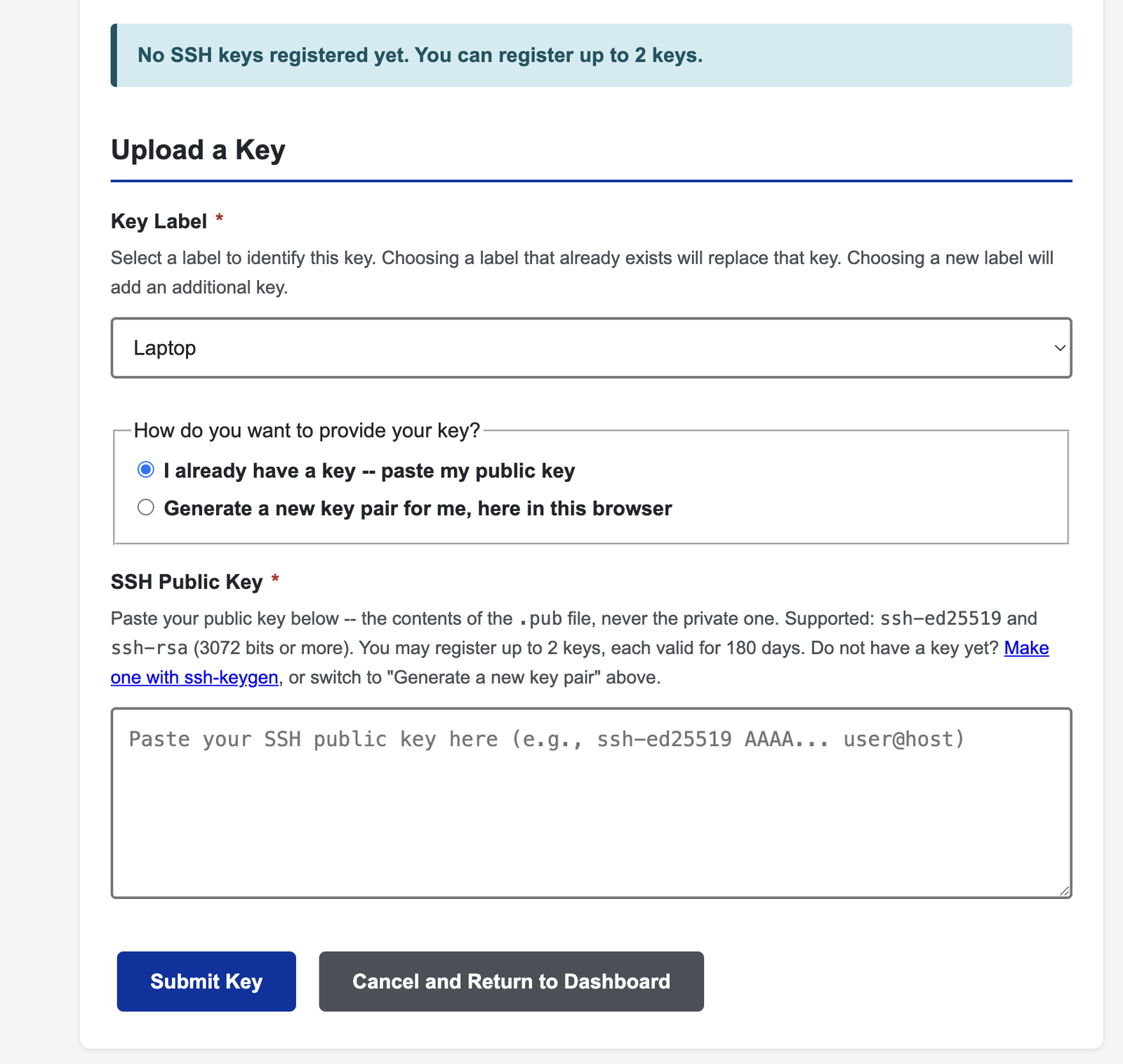
Copy the entire single line beginning ssh-ed25519 or ssh-rsa
and paste it on the Submit Key page, choosing
"I already have a key". Everything below about permissions, connecting, and the support
ticket applies exactly the same.
The two files, and which one is secret
An SSH key is a matched pair. If Locksmith generated it for you, you downloaded both halves:
id_ed25519_ccs(no extension) |
Private key. Secret. Stays on your computer forever. Anyone who copies this file can log in as you. Never email it, never paste it into a ticket, never upload it anywhere -- including to this site. |
|---|---|
id_ed25519_ccs.pub |
Public key. Not secret. This is the half you upload to Locksmith and the half administrators copy to the cluster. It is safe to share. |
Locksmith never receives your private key. When you generate a key here, it is created inside your own browser and the private half never leaves your machine. We could not produce a copy of it if we wanted to -- which is also why we cannot recover it for you if you lose it.
Put the private key where SSH can find it
Browsers save downloads to ~/Downloads, which is the wrong place: SSH
will not look there, and the file permissions are too loose. Move it and lock it down.
macOS and Linux
mkdir -p ~/.ssh && chmod 700 ~/.ssh
mv ~/Downloads/id_ed25519_ccs      ~/.ssh/
mv ~/Downloads/id_ed25519_ccs.pub  ~/.ssh/
chmod 600 ~/.ssh/id_ed25519_ccs
chmod 644 ~/.ssh/id_ed25519_ccs.pub
The chmod 600 matters. SSH refuses to use a private
key that other users on the machine can read.
Windows (PowerShell)
mkdir "$env:USERPROFILE\.ssh" -Force
move "$env:USERPROFILE\Downloads\id_ed25519_ccs"     "$env:USERPROFILE\.ssh\"
move "$env:USERPROFILE\Downloads\id_ed25519_ccs.pub" "$env:USERPROFILE\.ssh\"
icacls "$env:USERPROFILE\.ssh\id_ed25519_ccs" /inheritance:r /grant:r "$($env:USERNAME):(R)"
If you renamed the file
You can call the key whatever you like. SSH only looks for default names automatically, so a renamed key must be pointed at explicitly. For example, if you renamed it for a specific cluster:
mv ~/Downloads/id_ed25519_ccs ~/.ssh/id_ed25519_mcc
chmod 600 ~/.ssh/id_ed25519_mcc
then connect with -i pointing at that exact file:
ssh -i ~/.ssh/id_ed25519_mcc jdoe@mcc.ccs.uky.eduConnect to a cluster
Use the hostname of the cluster your account is on. If you are not sure which, the answer is in the account request you submitted, or ask in your support ticket.
| Cluster | Command |
|---|---|
| MCC | ssh -i ~/.ssh/id_ed25519_ccs jdoe@mcc.ccs.uky.edu |
| LCC | ssh -i ~/.ssh/id_ed25519_ccs jdoe@lcc.ccs.uky.edu |
| ECC | ssh -i ~/.ssh/id_ed25519_ccs jdoe@ecc.ccs.uky.edu |
Your cluster username is not always the same as the username shown on your Locksmith dashboard. Use the one issued with your cluster account.
If the key sits at a default name (~/.ssh/id_ed25519), you can drop the
-i entirely:
ssh jdoe@mcc.ccs.uky.eduSeveral keys? Use an SSH config file
If you have more than one key in ~/.ssh, SSH tries them in turn and can
be refused for trying too many before reaching the right one. Naming the key per host
avoids that entirely. Create or edit ~/.ssh/config:
Host mcc
    HostName mcc.ccs.uky.edu
    User jdoe
    IdentityFile ~/.ssh/id_ed25519_mcc
    IdentitiesOnly yes

Host lcc
    HostName lcc.ccs.uky.edu
    User jdoe
    IdentityFile ~/.ssh/id_ed25519_ccs
    IdentitiesOnly yes
chmod 600 ~/.ssh/configNow the short name is enough, and the correct key is used every time:
ssh mccIdentitiesOnly yes is the important line. Without it
SSH may still offer every key it can find before the one you named.
Check that it worked
Confirm the private key is readable and see its fingerprint:
ssh-keygen -l -f ~/.ssh/id_ed25519_ccsThat fingerprint should match the one shown for the key on your Locksmith dashboard. To watch the negotiation in detail when something is not working:
ssh -v -i ~/.ssh/id_ed25519_ccs jdoe@mcc.ccs.uky.eduAdd a passphrase (recommended)
Keys generated here have no passphrase, so the file alone is enough to log in. Adding one means an attacker needs the file and the passphrase. It does not change the key itself, so nothing needs re-uploading:
ssh-keygen -p -f ~/.ssh/id_ed25519_ccsTo avoid retyping it every connection, add the key to your agent:
ssh-add ~/.ssh/id_ed25519_ccs        # macOS/Linux
ssh-add --apple-use-keychain ~/.ssh/id_ed25519_ccs   # macOS, remember in Keychain
Keeping your key safe
- Never share the private key. Not with colleagues, not with CCS staff, not in a ticket. No one here will ever ask you for it -- a request for your private key is a sign that something is wrong.
- One key, one person. Registering a key that belongs to someone else, or letting someone use yours, violates acceptable use policy and results in permanent suspension of the account.
- Delete the copy in your Downloads folder once the key is in
~/.ssh. Downloads folders get synced, backed up and shared. - Do not put a private key on a shared or lab machine you do not control. Generate a separate key on each machine you connect from -- you can register up to 2.
- If you think a key was exposed, upload a replacement immediately and open a ticket saying so. Uploading a new key under the same label retires the old one.
Expiry and rotation
Every key is valid for 180 days -- see the rules above for the full picture. Your dashboard shows each key's status and date at all times.
To rotate: get a new key (in the browser or on the command line), upload the new public key under the same label as the old one, and the old key is retired automatically. Then open a ticket so an administrator copies it to the cluster.
Last step: open a support ticket
Uploading a key to Locksmith records it, but an administrator still has to copy it onto the cluster. Your key does not work until that happens. Open a ticket at the HPC User Support Request portal and say that you have uploaded a new key.
Troubleshooting
| Message | What to do |
|---|---|
Permissions 0644 for '...' are too open |
Run chmod 600 on the private key. |
Permission denied (publickey) |
Most often the key has not been copied to the
cluster yet -- check your ticket. Otherwise confirm you are using the right
username and the right key file with -i. |
Too many authentication failures |
SSH offered too many keys before the right one.
Use the config file above with
IdentitiesOnly yes. |
Load key ...: invalid format |
You are pointing at the wrong file, or the
download was renamed with a .txt extension. The private key
begins -----BEGIN OPENSSH PRIVATE KEY-----. |
| Lost the private key | It cannot be recovered -- nobody has a copy. Generate a new key, upload it under the same label, and open a ticket. |
Still stuck? Open a ticket at the
HPC User Support Request portal
and include the output of
ssh -v -i ~/.ssh/<your key> jdoe@<cluster>.
Never include the contents of the private key file itself.